Keybinds & Cheatsheets
Dux Modular Shell
Keybinds & Cheatsheets
The dms keybinds command provides a unified interface for viewing and managing keybinds across different applications. It can parse application-specific configurations (like Hyprland) and display user-defined cheatsheets in a consistent format.
Overview
The keybinds framework offers:
- Auto-discovery: Automatically finds keybinds from application configs
- Custom cheatsheets: Create JSON files for any application
- Multiple providers: Built-in support for niri, Hyprland, Sway, Scroll, mangowm, Miracle WM, and Aqueous, with extensibility for other applications
- XDG compliance: Follows XDG Base Directory standards for config locations
Quick Start
List all available keybind providers:
dms keybinds list
# Alias options:
dms cheatsheet list
dms chsht list
Show keybinds for a specific application:
dms keybinds show hyprland
dms keybinds show sway
dms keybinds show mangowc
dms keybinds show tmux
dms keybinds show firefox
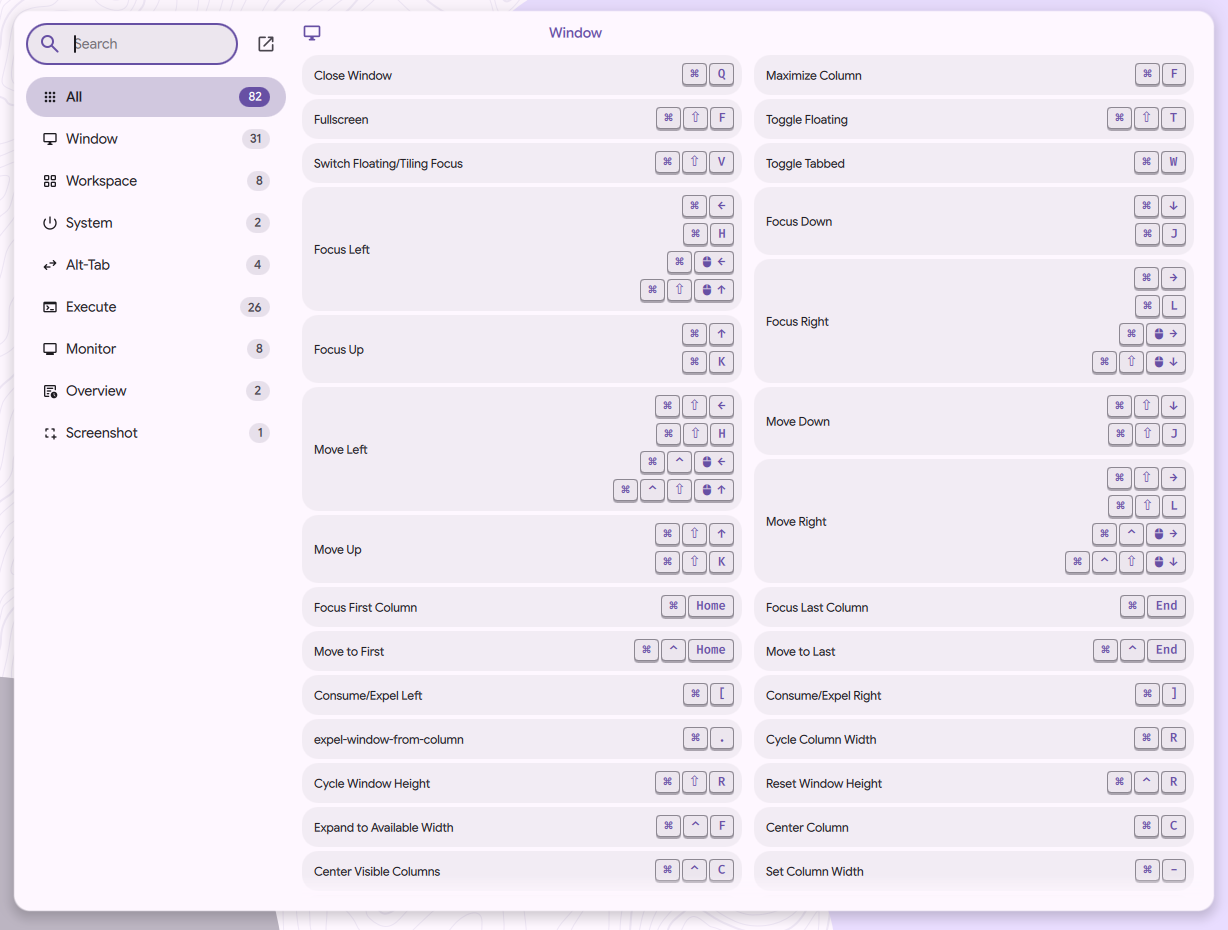
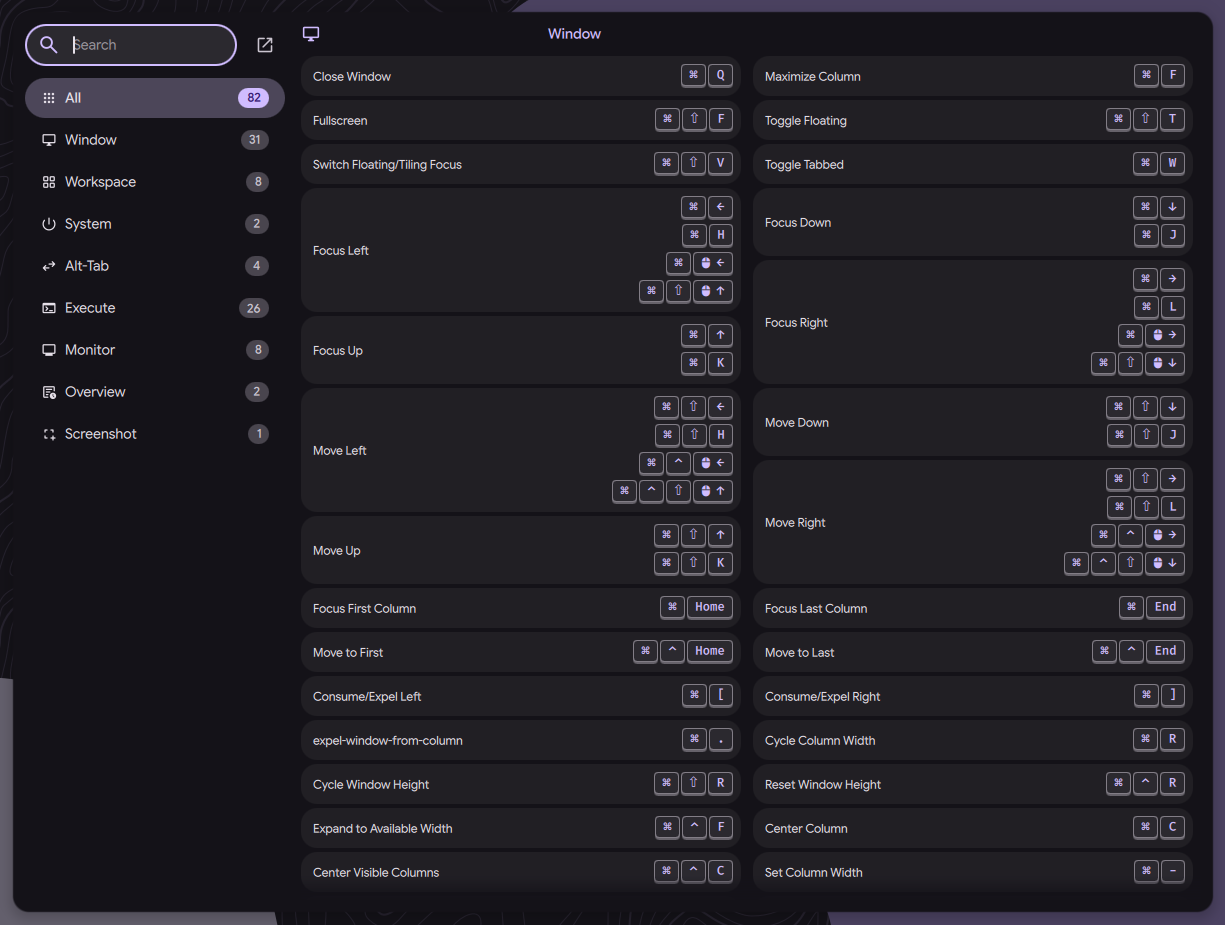
You can also display keybinds directly within DMS using IPC:
dms ipc call keybinds toggle hyprland
dms ipc call keybinds toggle sway
dms ipc call keybinds toggle <provider>
This opens a modal overlay showing the keybinds in the shell interface, eg for Hyprland:
Built-in Providers
Hyprland
The Hyprland provider automatically parses your Hyprland configuration files and extracts keybinds.
Features:
- Starts at
~/.config/hypr/hyprland.luaand follows everyrequire(...), including the DMS fragmentsdms/binds.luaanddms/binds-user.lua - Reads descriptions from the bind's
descriptionoption or a trailing--comment - Auto-generates descriptions for common dispatchers
- Categorizes binds by type (Window, Workspace, Execute, etc.)
- Shows per-device binds (
device = { ... }) and keeps their device table when you edit them
hyprland.conf is not parsed and binds are not converted; re-add them in dms/binds-user.lua or Settings → Input → Keyboard shortcuts. See Coming from hyprland.conf.
Usage:
# Use default Hyprland config path (~/.config/hypr)
dms keybinds show hyprland

# Specify custom path
dms keybinds show hyprland --path /path/to/hypr/config
Description Priority:
The provider generates descriptions in this order:
- The bind's
descriptionoption (e.g.,{ description = "Open terminal" }) - A trailing comment on the same line (e.g.,
hl.bind(...) -- Open terminal) - Auto-generated for known dispatchers (e.g.,
hl.dsp.window.close()→ "Close window") - Fallback format showing the dispatcher and its arguments
Category Logic:
Binds are automatically categorized based on their dispatcher:
- Workspace: workspace navigation and management
- Monitor: monitor-related actions
- Window: window management (move, resize, focus, kill, layout messages, etc.)
- Execute: launching applications and scripts
- System: system actions (exit, dpms, etc.)
- Other: miscellaneous dispatchers
A bind whose action is a Lua function (hl.bind("SUPER + F", my_func) or an inline function() ... end) is categorized by the words in its description, or by the function's name when it has none. Words starting with workspace go to Workspace, monitor to Monitor, window, focus, move, swap, resize, fullscreen, float, maximize or column to Window, and exit, reload or dpms to System; anything else goes to Other.
Bind options in the editor:
The keyboard shortcuts editor (Settings → Input → Keyboard shortcuts) shows a toggle for each Hyprland bind option and writes it to the hl.bind options table in dms/binds-user.lua: Repeat, Locked, Release, Long press, Non-consuming, Mouse, Transparent, Ignore mods, All submaps, Auto-consuming, Input capture, Not inhibitable, Click, and Drag.
Example Hyprland config:
hl.bind("SUPER + Q", hl.dsp.window.close())
hl.bind("SUPER + left", hl.dsp.focus({ direction = "l" }))
hl.bind("SUPER + 1", hl.dsp.focus({ workspace = "1" }))
hl.bind("SUPER + T", hl.dsp.exec_cmd("kitty"), { description = "Open terminal" })
hl.bind("SUPER + E", hl.dsp.exec_cmd("thunar")) -- File manager
Sway
The Sway provider automatically parses your Sway configuration files and extracts keybinds.
Features:
- Parses the Sway config file (typically
~/.config/sway/config) - Supports section comments with
##!(categories) and###!(subcategories) - Auto-generates descriptions for common Sway commands
- Respects
[hidden]comments to exclude certain binds - Categorizes binds by type (Window, Workspace, Execute, etc.)
Usage:
# Use default Sway config path (~/.config/sway/config)
dms keybinds show sway

# Specify custom path
dms keybinds show sway --path /path/to/sway/config
Example Sway config:
##! Window Management
bindsym $mod+q kill
bindsym $mod+f fullscreen toggle

###! Movement
bindsym $mod+Left focus left
bindsym $mod+Right focus right

##! Workspaces
bindsym $mod+1 workspace number 1
bindsym $mod+2 workspace number 2

##! Applications
bindsym $mod+Return exec kitty # Open terminal
mangowm
The mangowm provider automatically parses your mangowm (dwl) configuration and extracts keybinds.
Features:
- Parses mangowm keybind definitions
- Supports section comments with
##!(categories) and###!(subcategories) - Auto-generates descriptions for common mangowm actions
- Respects
[hidden]comments to exclude certain binds - Categorizes binds by type
Usage:
# Use default mangowm config path
dms keybinds show mangowc

# Specify custom path
dms keybinds show mangowc --path /path/to/mangowc/config
Niri
The Niri provider parses KDL-format Niri configuration files and extracts keybinds. Unlike the other providers, Niri is writable—you can create and manage keybind overrides through DMS.
Features:
- Parses KDL-format config files
- Follows
includedirectives to merge all keybind sources - Supports DMS overrides via
~/.config/niri/dms/binds.kdl - Detects conflicts between DMS defaults and your binds
- Validates config before writing using
niri validate - Supports bind options:
repeat,cooldown-ms,allow-when-locked,allow-inhibiting, and on the next niri release, release triggers andpass-through - Marks release-only binds with a Release badge in the cheatsheet
Usage:
# Use default Niri config path (~/.config/niri)
dms keybinds show niri

# Specify custom config directory
dms keybinds show niri --path /path/to/niri/config
Writing Keybinds
Set overrides that get written to ~/.config/niri/dms/binds.kdl:
# Basic keybind
dms keybinds set niri "Mod+T" "spawn kitty"

# With description (shown in hotkey overlay)
dms keybinds set niri "Mod+T" "spawn kitty" --desc "Open terminal"

# With options
dms keybinds set niri "Mod+V" "spawn pavucontrol" \
  --desc "Volume control" \
  --allow-when-locked

# Disable key repeat
dms keybinds set niri "Mod+Q" "close-window" --no-repeat

# Set cooldown between activations
dms keybinds set niri "Mod+Print" "screenshot" --cooldown-ms 500

# Replace an existing keybind with a new key
dms keybinds set niri "Mod+Shift+T" "spawn kitty" \
  --desc "Open terminal" \
  --replace-key "Mod+T"

# Next niri release: run on key release (here, a Mod tap)
dms keybinds set niri "Mod" "toggle-overview" --trigger release

# Next niri release: one action on press, another on release (push-to-talk)
dms keybinds set niri "Control_R" "spawn wpctl set-mute @DEFAULT_SOURCE@ 0" \
  --trigger both --release-action "spawn wpctl set-mute @DEFAULT_SOURCE@ 1"
Remove a keybind:
dms keybinds remove niri "Mod+T"
Niri Config Setup
Include the DMS binds files in your Niri config:
// ~/.config/niri/config.kdl

// Version-dependent DMS binds, rewritten by DMS
include optional=true "dms/binds-next.kdl"
// DMS keybind overrides
include optional=true "dms/binds.kdl"

binds {
    Mod+Q { close-window; }
    Mod+T { spawn "kitty"; }
}
dms/binds-next.kdl holds the Keyboard Shortcuts bind (Mod+Shift+Slash on niri 26.04, Mod+Shift+question on the next release) and, on the next release, a Mod tap that toggles the overview. DMS rewrites it to match the installed niri, so change these binds in dms/binds.kdl instead. See Version-dependent binds.
- DMS include before your binds: Your binds override DMS defaults
- DMS include after your binds: DMS binds take priority
dms/binds-next.kdlgoes beforedms/binds.kdl, so binds you set through DMS override it
The cheatsheet output includes conflict detection showing which binds are overridden.
Bind Options
| Option | Flag | Description |
|---|---|---|
| repeat | --no-repeat | Disable key repeat (default: enabled) |
| cooldown-ms | --cooldown-ms <ms> | Minimum time between activations |
| allow-when-locked | --allow-when-locked | Allow bind when screen is locked |
| allow-inhibiting=false | --no-inhibiting | Keep the bind working while an app inhibits shortcuts |
| hotkey-overlay-title | --desc <text> | Description shown in Niri's hotkey overlay |
release { } | --trigger press|release|both | Fire on press (default), on release, or both. Omitted keeps the existing bind's trigger. Not for scroll binds. Next niri release |
press { } release { } | --release-action <action> | Action run on release; requires --trigger both |
| pass-through | --pass-through | Also send the key to the focused window. Keyboard binds only. Release-only binds already pass through, so --pass-through=false stops that. Next niri release |
--trigger, --release-action and --pass-through only work with the niri provider. In Settings → Input → Keyboard shortcuts the same options are the Release and Non-consuming toggles. The editor shows a press-and-release bind's release action, but only the CLI sets it.
Action Formats
# Simple action
dms keybinds set niri "Mod+F" "fullscreen"

# Action with argument
dms keybinds set niri "Mod+1" "focus-workspace 1"

# Spawn with simple command
dms keybinds set niri "Mod+T" "spawn kitty"

# Spawn with shell command
dms keybinds set niri "Mod+P" "spawn sh -c \"wofi --show drun\""
Category Logic
Binds are auto-categorized based on their action:
| Category | Actions |
|---|---|
| Alt-Tab | next-window, previous-window |
| Screenshot | Anything containing "screenshot" |
| Overview | show-hotkey-overlay, toggle-overview |
| System | quit, power-off-monitors, DPMS actions |
| Execute | spawn commands |
| Workspace | Actions containing "workspace" |
| Monitor | focus-monitor-*, move-*-to-monitor-* |
| Window | Focus, move, swap, resize, column actions |
| Other | Everything else |
Custom Cheatsheets
You can create custom cheatsheets for any application by adding JSON files to the cheatsheets directory.
Directory Locations
The framework follows XDG Base Directory standards:
Default location (when no XDG vars set):
~/.config/dms/cheatsheets/
With XDG_CONFIG_HOME set:
$XDG_CONFIG_HOME/dms/cheatsheets/
With XDG_CONFIG_DIRS set (NixOS compatibility): The framework searches in this order:
$XDG_CONFIG_HOME/dms/cheatsheets/- Each directory in
$XDG_CONFIG_DIRS/dms/cheatsheets/
JSON Format
Create a file named after your application (e.g., vim.json, tmux.json):
{
  "title": "Vim Keybinds",
  "provider": "vim",
  "binds": {
    "Mode": [
      {
        "key": "i",
        "desc": "Enter insert mode",
        "subcat": "Insert"
      },
      {
        "key": "Esc",
        "desc": "Exit insert mode",
        "subcat": "Normal"
      }
    ],
    "Editing": [
      {
        "key": "dd",
        "desc": "Delete current line",
        "subcat": "Delete"
      },
      {
        "key": "yy",
        "desc": "Copy current line",
        "subcat": "Yank"
      },
      {
        "key": "p",
        "desc": "Paste after cursor",
        "subcat": "Paste"
      }
    ],
    "Navigation": [
      {
        "key": "gg",
        "desc": "Go to first line"
      },
      {
        "key": "G",
        "desc": "Go to last line"
      }
    ]
  }
}
Field Reference
title(required): Display name shown when viewing the cheatsheetprovider(optional): Provider identifier used in commands (defaults to filename without extension)binds(required): Object where keys are category names and values are arrays of keybindingskey(required): The key combination (e.g., "Ctrl+Alt+J", "SUPER+T")desc(required): Description of what the keybind doessubcat(optional): Subcategory for finer organization within a category
Example: tmux Cheatsheet
File: ~/.config/dms/cheatsheets/tmux.json
{
  "title": "tmux Keybinds",
  "provider": "tmux",
  "binds": {
    "Sessions": [
      {
        "key": "Ctrl+B, $",
        "desc": "Rename session"
      },
      {
        "key": "Ctrl+B, d",
        "desc": "Detach from session"
      }
    ],
    "Windows": [
      {
        "key": "Ctrl+B, c",
        "desc": "Create new window"
      },
      {
        "key": "Ctrl+B, ,",
        "desc": "Rename window"
      },
      {
        "key": "Ctrl+B, n",
        "desc": "Next window"
      },
      {
        "key": "Ctrl+B, p",
        "desc": "Previous window"
      }
    ],
    "Panes": [
      {
        "key": "Ctrl+B, %",
        "desc": "Split vertically",
        "subcat": "Split"
      },
      {
        "key": "Ctrl+B, \"",
        "desc": "Split horizontally",
        "subcat": "Split"
      },
      {
        "key": "Ctrl+B, x",
        "desc": "Close pane",
        "subcat": "Management"
      }
    ]
  }
}
After creating the file, it will automatically be discovered:
dms keybinds list
# Shows: hyprland, mangowc, sway, firefox, tmux, vim, ...

dms keybinds show tmux
# Displays your custom tmux cheatsheet
Command Reference
dms keybinds list
Lists all available keybind providers (both built-in and custom).
Aliases: dms cheatsheet list, dms chsht list
dms keybinds list
Example output:
Available providers:
  - hyprland
  - mangowc
  - sway
  - firefox
  - tmux
  - vim
dms keybinds show <provider>
Displays keybinds for the specified provider.
Aliases: dms cheatsheet show, dms chsht show
dms keybinds show <provider> [flags]
Flags:
--path <path>: Override the default config location for any provider-h, --help: Show help for the command
Examples:
# Show Hyprland keybinds from default location
dms keybinds show hyprland

# Show Hyprland keybinds from custom location
dms keybinds show hyprland --path /custom/path/to/hypr

# Show Sway keybinds with custom config
dms keybinds show sway --path /etc/sway/config

# Show mangowm keybinds with custom config
dms keybinds show mangowc --path /custom/mangowc/config

# Show custom cheatsheet
dms keybinds show vim
Tips & Best Practices
Organizing Sway and mangowm Configs
Use section headers to organize your keybinds:
##! Window Management
###! Focus
bindsym $mod+Left focus left
bindsym $mod+Right focus right

###! Layout
bindsym $mod+f fullscreen toggle
bindsym $mod+Shift+space floating toggle

##! Applications
bindsym $mod+Return exec kitty
bindsym $mod+b exec firefox
Hyprland's Lua config has no section headers; the provider categorizes binds by dispatcher.
Hiding Internal Binds
On Sway and mangowm, use [hidden] to exclude binds from the display:
# This won't appear in the keybinds list
bindsym $mod+x exec secret-script # [hidden]
Descriptive Comments
Add clear comments to override auto-generated descriptions:
-- Auto-generated: "kitty"
hl.bind("SUPER + T", hl.dsp.exec_cmd("kitty"))

-- Custom: "Open terminal"
hl.bind("SUPER + T", hl.dsp.exec_cmd("kitty")) -- Open terminal
Consistent Naming
When creating custom cheatsheets, use consistent naming:
- Filename:
application.json(lowercase, no spaces) - Provider: Match the filename or use a common identifier
- Title: Use the application's proper name